Check Multi Apn Connection
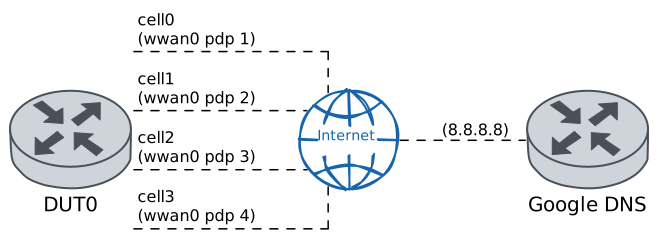
This scenario shows how to configure up to four cellular interfaces on the same cellular module, each associated with a different APN. As a result, more than one data interface can be used to access the network, requiring only one cellular module.
Test ICMP Connectivity
Description
In DUT0, four cellular interfaces are defined, each associated with a different cellular profile and PDP (Packet Data Protocol) context. Once configured, the ‘Ping’ command is used to check the connectivity of all four data interfaces with Google’s public DNS server.
Scenario
Step 1: Set the following configuration in DUT0 :
set cellular profile CELPROFILE1 apn movistar.es
set cellular profile CELPROFILE2 apn telefonica.es
set cellular profile CELPROFILE3 apn internet
set cellular profile CELPROFILE4 apn internet2
set controllers cellular wwan0 encrypted-pin U2FsdGVkX1+YbHBhcPrcKz/9MkN2nUeoOv/q2eMtDXE=
set controllers cellular wwan0 pdp 1 profile CELPROFILE1
set controllers cellular wwan0 pdp 2 profile CELPROFILE2
set controllers cellular wwan0 pdp 3 profile CELPROFILE3
set controllers cellular wwan0 pdp 4 profile CELPROFILE4
set interfaces cellular cell0 address dhcp
set interfaces cellular cell0 phy wwan0 pdp 1
set interfaces cellular cell1 address dhcp
set interfaces cellular cell1 phy wwan0 pdp 2
set interfaces cellular cell2 address dhcp
set interfaces cellular cell2 phy wwan0 pdp 3
set interfaces cellular cell3 address dhcp
set interfaces cellular cell3 phy wwan0 pdp 4
set system login user admin authentication encrypted-password '$6$GSjsCj8gHLv$/VcqU6FLi6CT2Oxn0MJQ2C2tqnRDrYKNF8HIYWJp68nvXvPdFccDsT04.WtigUONbKYrgKg8d6rEs8PjljMkH0'
Note
Once the cellular module is configured, with the following operational command it can be checked if the SIM and registration states are correct.
Step 2: Run the command controllers cellular wwan0 show network-status on DUT0 and check whether the output matches the following regular expressions:
SIM status\s* = OK
Registration state\s* = registered
Show output
SIM status = OK
Registration state = registered
Public Land Mobile Network code = HOME[21407] ACT[21422]
Public Land Mobile Network name = Movistar
Network technology currently in use = lte
Current Service Domain registered = cs-ps (capable cs-ps)
Current Roaming status = off
3GPP Cell ID = 72016415
Radio Band = eutran-20
Channel = 6400
LTE Tracking Area Code (TAC) = 28673
LTE Carrier Aggregation Info:
   Primary Cell Info:
      Band = E-UTRA Band 20
      Frequency = 6400
      Downlink Bandwidth = 10 MHz
      Physical Cell ID = 195
      Scell State = registered
      RSRP (dBm) = -81
      RSRQ (dB) = -8
      RSSI (dBm) = -55
      SINR (dB) = 6
      Uplink Bandwidth = 10 MHz
   Secondary Cell Info #0:
      Band = E-UTRA Band 3
      Frequency = 1301
      Downlink Bandwidth = 20 MHz
      Physical Cell ID = 216
      Scell State = inactive
      RSRP (dBm) = -91
      RSRQ (dB) = -9
      RSSI (dBm) = -73
      SINR (dB) = 6
RX level (dBm) = -82
Coverage level = 4 (**** )
Note
On the other hand, with the following commands it can be checked if all four contexts have correctly established the connection to the network.
Step 3: Run the command controllers cellular wwan0 pdp 1 show network-data-connection on DUT0 and check whether the output matches the following regular expressions:
Connection status\s* = connectedShow output
Connection status               = connected
Traffic channel status          = active
Max. TX channel rate (bps)      = 50000000
Max. RX channel rate (bps)      = 300000000
IPv4 address                    = 5.205.230.155
IPv4 mask                       = 255.255.255.248
IPv4 gateway                    = 5.205.230.156
IPv4 primary DNS                = 80.58.61.248
IPv4 secondary DNS              = 80.58.61.249
Step 4: Run the command controllers cellular wwan0 pdp 2 show network-data-connection on DUT0 and check whether the output matches the following regular expressions:
Connection status\s* = connectedShow output
Connection status               = connected
Traffic channel status          = active
Max. TX channel rate (bps)      = 50000000
Max. RX channel rate (bps)      = 300000000
IPv4 address                    = 10.3.77.229
IPv4 mask                       = 255.255.255.252
IPv4 gateway                    = 10.3.77.230
IPv4 primary DNS                = 80.58.61.248
IPv4 secondary DNS              = 80.58.61.249
Step 5: Run the command controllers cellular wwan0 pdp 3 show network-data-connection on DUT0 and check whether the output matches the following regular expressions:
Connection status\s* = connectedShow output
Connection status               = connected
Traffic channel status          = active
Max. TX channel rate (bps)      = 50000000
Max. RX channel rate (bps)      = 300000000
IPv4 address                    = 10.217.1.148
IPv4 mask                       = 255.255.255.248
IPv4 gateway                    = 10.217.1.149
IPv4 primary DNS                = 80.58.61.248
IPv4 secondary DNS              = 80.58.61.249
Step 6: Run the command controllers cellular wwan0 pdp 4 show network-data-connection on DUT0 and check whether the output matches the following regular expressions:
Connection status\s* = connectedShow output
Connection status               = connected
Traffic channel status          = active
Max. TX channel rate (bps)      = 50000000
Max. RX channel rate (bps)      = 300000000
IPv4 address                    = 10.109.244.203
IPv4 mask                       = 255.255.255.248
IPv4 gateway                    = 10.109.244.204
IPv4 primary DNS                = 80.58.61.248
IPv4 secondary DNS              = 80.58.61.249
Note
Additionally, with the previous operational commands, the IP addresses that have been provided by the operator to be used by each cellular interface are displayed. So, with the following commands, it can be checked if all four cellular interfaces have been correctly configured by the DHCP client.
Step 7: Run the command interfaces cellular cell0 show on DUT0 and check whether the output matches the following regular expressions:
cell0\s+\d+.\d+.\d+.\d+\/\d+\s+up\s+upShow output
------------------------------------------------------------------
Name            IP Address           Admin  Oper  Vrf  Description
------------------------------------------------------------------
cell0  5.205.230.155/29              up     up
       fe80::68b9:efff:fea9:63c1/64
Step 8: Run the command interfaces cellular cell1 show on DUT0 and check whether the output matches the following regular expressions:
cell1\s+\d+.\d+.\d+.\d+\/\d+\s+up\s+upShow output
------------------------------------------------------------------
Name            IP Address           Admin  Oper  Vrf  Description
------------------------------------------------------------------
cell1  10.3.77.229/30                up     up
       fe80::68b9:efff:fea9:63c1/64
Step 9: Run the command interfaces cellular cell2 show on DUT0 and check whether the output matches the following regular expressions:
cell2\s+\d+.\d+.\d+.\d+\/\d+\s+up\s+upShow output
------------------------------------------------------------------
Name            IP Address           Admin  Oper  Vrf  Description
------------------------------------------------------------------
cell2  10.217.1.148/29               up     up
       fe80::68b9:efff:fea9:63c1/64
Step 10: Run the command interfaces cellular cell3 show on DUT0 and check whether the output matches the following regular expressions:
cell3\s+\d+.\d+.\d+.\d+\/\d+\s+up\s+upShow output
------------------------------------------------------------------
Name            IP Address           Admin  Oper  Vrf  Description
------------------------------------------------------------------
cell3  10.109.244.203/29             up     up
       fe80::68b9:efff:fea9:63c1/64
Note
Once everything above has been verified, we can be sure that all four cellular interfaces have been configured correctly and that there must be connectivity with the network from each of them. The latter can be verified, for example, by pinging Google's DNS public server.
Step 11: Ping the IP address 8.8.8.8 from DUT0:
admin@DUT0$ ping 8.8.8.8 local-address cell0 count 1 size 56 timeout 1Show output
PING 8.8.8.8 (8.8.8.8) from 5.205.230.155 cell0: 56(84) bytes of data.
64 bytes from 8.8.8.8: icmp_seq=1 ttl=118 time=46.1 ms

--- 8.8.8.8 ping statistics ---
1 packets transmitted, 1 received, 0% packet loss, time 0ms
rtt min/avg/max/mdev = 46.124/46.124/46.124/0.000 ms
Step 12: Ping the IP address 8.8.8.8 from DUT0:
admin@DUT0$ ping 8.8.8.8 local-address cell1 count 1 size 56 timeout 1Show output
PING 8.8.8.8 (8.8.8.8) from 10.3.77.229 cell1: 56(84) bytes of data.
64 bytes from 8.8.8.8: icmp_seq=1 ttl=114 time=170 ms

--- 8.8.8.8 ping statistics ---
1 packets transmitted, 1 received, 0% packet loss, time 0ms
rtt min/avg/max/mdev = 170.230/170.230/170.230/0.000 ms
Step 13: Ping the IP address 8.8.8.8 from DUT0:
admin@DUT0$ ping 8.8.8.8 local-address cell2 count 1 size 56 timeout 1Show output
PING 8.8.8.8 (8.8.8.8) from 10.217.1.148 cell2: 56(84) bytes of data.
64 bytes from 8.8.8.8: icmp_seq=1 ttl=114 time=132 ms

--- 8.8.8.8 ping statistics ---
1 packets transmitted, 1 received, 0% packet loss, time 0ms
rtt min/avg/max/mdev = 132.336/132.336/132.336/0.000 ms
Step 14: Ping the IP address 8.8.8.8 from DUT0:
admin@DUT0$ ping 8.8.8.8 local-address cell3 count 1 size 56 timeout 1Show output
PING 8.8.8.8 (8.8.8.8) from 10.109.244.203 cell3: 56(84) bytes of data.
64 bytes from 8.8.8.8: icmp_seq=1 ttl=114 time=165 ms

--- 8.8.8.8 ping statistics ---
1 packets transmitted, 1 received, 0% packet loss, time 0ms
rtt min/avg/max/mdev = 165.462/165.462/165.462/0.000 ms
Step 1: Set the following configuration in DUT0 :
set cellular profile CELPROFILE1 apn movistar.es
set cellular profile CELPROFILE2 apn telefonica.es
set cellular profile CELPROFILE3 apn internet
set cellular profile CELPROFILE4 apn internet2
set controllers cellular wwan0 sim select socket_1
set controllers cellular wwan0 sim socket socket_1 encrypted-pin U2FsdGVkX19kmhqj/hm7Tjthg/B4dWPDxe2443OGBWU=
set controllers cellular wwan0 sim socket socket_1 pdp 1 profile CELPROFILE1
set controllers cellular wwan0 sim socket socket_1 pdp 2 profile CELPROFILE2
set controllers cellular wwan0 sim socket socket_1 pdp 3 profile CELPROFILE3
set controllers cellular wwan0 sim socket socket_1 pdp 4 profile CELPROFILE4
set interfaces cellular cell0 address dhcp
set interfaces cellular cell0 phy wwan0 pdp 1
set interfaces cellular cell1 address dhcp
set interfaces cellular cell1 phy wwan0 pdp 2
set interfaces cellular cell2 address dhcp
set interfaces cellular cell2 phy wwan0 pdp 3
set interfaces cellular cell3 address dhcp
set interfaces cellular cell3 phy wwan0 pdp 4
set system login user admin authentication encrypted-password '$6$GSjsCj8gHLv$/VcqU6FLi6CT2Oxn0MJQ2C2tqnRDrYKNF8HIYWJp68nvXvPdFccDsT04.WtigUONbKYrgKg8d6rEs8PjljMkH0'
Note
Once the cellular module is configured, with the following operational command it can be checked if the SIM and registration states are correct.
Step 2: Run the command controllers cellular wwan0 show network-status on DUT0 and check whether the output matches the following regular expressions:
SIM status\s* = OK
Registration state\s* = registered
Show output
SIM status = OK
Registration state = registered
Public Land Mobile Network code = HOME[21407] ACT[21422]
Public Land Mobile Network name = Movistar
Network technology currently in use = lte(+5gnr)
Current Service Domain registered = cs-ps (capable cs-ps)
Current Roaming status = off
3GPP Cell ID = 72016415
Radio Band = eutran-20
Bandwidth = 10
Channel = 6400
LTE Tracking Area Code (TAC) = 28673
EN-DC Available = yes
DCNR Restriction = no
LTE Carrier Aggregation Info:
   Primary Cell Info:
      Band = E-UTRA Band 20
      Frequency = 6400
      Downlink Bandwidth = 10 MHz
      Physical Cell ID = 195
      Scell State = registered
      RSRP (dBm) = -69
      RSRQ (dB) = -9
      RSSI (dBm) = -43
      SINR (dB) = 12
      Uplink Bandwidth = 10 MHz
   Secondary Cell Info #0:
      Band = E-UTRA Band 3
      Frequency = 1301
      Downlink Bandwidth = 20 MHz
      Physical Cell ID = 216
      Scell State = inactive
      RSRP (dBm) = -111
      RSRQ (dB) = -10
      RSSI (dBm) = -92
      SINR (dB) = 8
      Uplink Frequency = 19301
      Uplink Bandwidth = 20 MHz
RX level (dBm) = -69
Coverage level = 5 (*****)
Note
On the other hand, with the following commands it can be checked if all four contexts have correctly established the connection to the network.
Step 3: Run the command controllers cellular wwan0 pdp 1 show network-data-connection on DUT0 and check whether the output matches the following regular expressions:
Connection status\s* = connectedShow output
Connection status               = connected
Traffic channel status          = active
Max. TX channel rate (bps)      = 0
Max. RX channel rate (bps)      = 0
IPv4 address                    = 5.205.242.211
IPv4 mask                       = 255.255.255.248
IPv4 gateway                    = 5.205.242.212
IPv4 primary DNS                = 80.58.61.248
IPv4 secondary DNS              = 80.58.61.249
Step 4: Run the command controllers cellular wwan0 pdp 2 show network-data-connection on DUT0 and check whether the output matches the following regular expressions:
Connection status\s* = connectedShow output
Connection status               = connected
Traffic channel status          = active
Max. TX channel rate (bps)      = 0
Max. RX channel rate (bps)      = 0
IPv4 address                    = 10.218.215.32
IPv4 mask                       = 255.255.255.192
IPv4 gateway                    = 10.218.215.33
IPv4 primary DNS                = 80.58.61.248
IPv4 secondary DNS              = 80.58.61.249
Step 5: Run the command controllers cellular wwan0 pdp 3 show network-data-connection on DUT0 and check whether the output matches the following regular expressions:
Connection status\s* = connectedShow output
Connection status               = connected
Traffic channel status          = active
Max. TX channel rate (bps)      = 0
Max. RX channel rate (bps)      = 0
IPv4 address                    = 10.3.174.6
IPv4 mask                       = 255.255.255.252
IPv4 gateway                    = 10.3.174.5
IPv4 primary DNS                = 80.58.61.248
IPv4 secondary DNS              = 80.58.61.249
Step 6: Run the command controllers cellular wwan0 pdp 4 show network-data-connection on DUT0 and check whether the output matches the following regular expressions:
Connection status\s* = connectedShow output
Connection status               = connected
Traffic channel status          = active
Max. TX channel rate (bps)      = 0
Max. RX channel rate (bps)      = 0
IPv4 address                    = 10.215.159.58
IPv4 mask                       = 255.255.255.252
IPv4 gateway                    = 10.215.159.57
IPv4 primary DNS                = 80.58.61.248
IPv4 secondary DNS              = 80.58.61.249
Note
Additionally, with the previous operational commands, the IP addresses that have been provided by the operator to be used by each cellular interface are displayed. So, with the following commands, it can be checked if all four cellular interfaces have been correctly configured by the DHCP client.
Step 7: Run the command interfaces cellular cell0 show on DUT0 and check whether the output matches the following regular expressions:
cell0\s+\d+.\d+.\d+.\d+\/\d+\s+up\s+upShow output
------------------------------------------------------------------
Name            IP Address           Admin  Oper  Vrf  Description
------------------------------------------------------------------
cell0  5.205.242.211/29              up     up
       fe80::f803:7aff:fe2e:ebd1/64
Step 8: Run the command interfaces cellular cell1 show on DUT0 and check whether the output matches the following regular expressions:
cell1\s+\d+.\d+.\d+.\d+\/\d+\s+up\s+upShow output
------------------------------------------------------------------
Name            IP Address           Admin  Oper  Vrf  Description
------------------------------------------------------------------
cell1  10.218.215.32/26              up     up
       fe80::f803:7aff:fe2e:ebd1/64
Step 9: Run the command interfaces cellular cell2 show on DUT0 and check whether the output matches the following regular expressions:
cell2\s+\d+.\d+.\d+.\d+\/\d+\s+up\s+upShow output
------------------------------------------------------------------
Name            IP Address           Admin  Oper  Vrf  Description
------------------------------------------------------------------
cell2  10.3.174.6/30                 up     up
       fe80::f803:7aff:fe2e:ebd1/64
Step 10: Run the command interfaces cellular cell3 show on DUT0 and check whether the output matches the following regular expressions:
cell3\s+\d+.\d+.\d+.\d+\/\d+\s+up\s+upShow output
------------------------------------------------------------------
Name            IP Address           Admin  Oper  Vrf  Description
------------------------------------------------------------------
cell3  10.215.159.58/30              up     up
       fe80::f803:7aff:fe2e:ebd1/64
Note
Once everything above has been verified, we can be sure that all four cellular interfaces have been configured correctly and that there must be connectivity with the network from each of them. The latter can be verified, for example, by pinging Google's DNS public server.
Step 11: Ping the IP address 8.8.8.8 from DUT0:
admin@DUT0$ ping 8.8.8.8 local-address cell0 count 1 size 56 timeout 1Show output
PING 8.8.8.8 (8.8.8.8) from 5.205.242.211 cell0: 56(84) bytes of data.
64 bytes from 8.8.8.8: icmp_seq=1 ttl=117 time=135 ms

--- 8.8.8.8 ping statistics ---
1 packets transmitted, 1 received, 0% packet loss, time 0ms
rtt min/avg/max/mdev = 135.256/135.256/135.256/0.000 ms
Step 12: Ping the IP address 8.8.8.8 from DUT0:
admin@DUT0$ ping 8.8.8.8 local-address cell1 count 1 size 56 timeout 1Show output
PING 8.8.8.8 (8.8.8.8) from 10.218.215.32 cell1: 56(84) bytes of data.
64 bytes from 8.8.8.8: icmp_seq=1 ttl=114 time=162 ms

--- 8.8.8.8 ping statistics ---
1 packets transmitted, 1 received, 0% packet loss, time 0ms
rtt min/avg/max/mdev = 162.124/162.124/162.124/0.000 ms
Step 13: Ping the IP address 8.8.8.8 from DUT0:
admin@DUT0$ ping 8.8.8.8 local-address cell2 count 1 size 56 timeout 1Show output
PING 8.8.8.8 (8.8.8.8) from 10.3.174.6 cell2: 56(84) bytes of data.
64 bytes from 8.8.8.8: icmp_seq=1 ttl=114 time=159 ms

--- 8.8.8.8 ping statistics ---
1 packets transmitted, 1 received, 0% packet loss, time 0ms
rtt min/avg/max/mdev = 159.377/159.377/159.377/0.000 ms
Step 14: Ping the IP address 8.8.8.8 from DUT0:
admin@DUT0$ ping 8.8.8.8 local-address cell3 count 1 size 56 timeout 1Show output
PING 8.8.8.8 (8.8.8.8) from 10.215.159.58 cell3: 56(84) bytes of data.
64 bytes from 8.8.8.8: icmp_seq=1 ttl=114 time=146 ms

--- 8.8.8.8 ping statistics ---
1 packets transmitted, 1 received, 0% packet loss, time 0ms
rtt min/avg/max/mdev = 145.509/145.509/145.509/0.000 ms
Step 1: Set the following configuration in DUT0 :
set cellular profile CELPROFILE1 apn movistar.es
set cellular profile CELPROFILE2 apn telefonica.es
set cellular profile CELPROFILE3 apn internet
set cellular profile CELPROFILE4 apn internet2
set controllers cellular wwan0 sim select socket_1
set controllers cellular wwan0 sim socket socket_1 encrypted-pin U2FsdGVkX18kySOF3F8nVCOj+AinnlL01DRoJ8EPSzc=
set controllers cellular wwan0 sim socket socket_1 pdp 1 profile CELPROFILE1
set controllers cellular wwan0 sim socket socket_1 pdp 2 profile CELPROFILE2
set controllers cellular wwan0 sim socket socket_1 pdp 3 profile CELPROFILE3
set controllers cellular wwan0 sim socket socket_1 pdp 4 profile CELPROFILE4
set interfaces cellular cell0 address dhcp
set interfaces cellular cell0 phy wwan0 pdp 1
set interfaces cellular cell1 address dhcp
set interfaces cellular cell1 phy wwan0 pdp 2
set interfaces cellular cell2 address dhcp
set interfaces cellular cell2 phy wwan0 pdp 3
set interfaces cellular cell3 address dhcp
set interfaces cellular cell3 phy wwan0 pdp 4
set system login user admin authentication encrypted-password '$6$GSjsCj8gHLv$/VcqU6FLi6CT2Oxn0MJQ2C2tqnRDrYKNF8HIYWJp68nvXvPdFccDsT04.WtigUONbKYrgKg8d6rEs8PjljMkH0'
Note
Once the cellular module is configured, with the following operational command it can be checked if the SIM and registration states are correct.
Step 2: Run the command controllers cellular wwan0 show network-status on DUT0 and check whether the output matches the following regular expressions:
SIM status\s* = OK
Registration state\s* = registered
Show output
SIM status = OK
Registration state = registered
Public Land Mobile Network code = HOME[21407] ACT[21422]
Public Land Mobile Network name = Movistar
Network technology currently in use = lte(+5gnr)
Current Service Domain registered = cs-ps (capable cs-ps)
Current Roaming status = off
3GPP Cell ID = 72016415
Radio Band = eutran-20
Bandwidth = 10
Channel = 6400
LTE Tracking Area Code (TAC) = 28673
EN-DC Available = yes
DCNR Restriction = no
LTE Carrier Aggregation Info:
   Primary Cell Info:
      Band = E-UTRA Band 20
      Frequency = 6400
      Downlink Bandwidth = 10 MHz
      Physical Cell ID = 195
      Scell State = registered
      RSRP (dBm) = -73
      RSRQ (dB) = -11
      RSSI (dBm) = -45
      SINR (dB) = 10
      Uplink Bandwidth = 10 MHz
   Secondary Cell Info #0:
      Band = E-UTRA Band 3
      Frequency = 1301
      Downlink Bandwidth = 20 MHz
      Physical Cell ID = 216
      Scell State = inactive
      RSRP (dBm) = -82
      RSRQ (dB) = -9
      RSSI (dBm) = -62
      SINR (dB) = 10
      Uplink Frequency = 19301
      Uplink Bandwidth = 20 MHz
RX level (dBm) = -75
Coverage level = 5 (*****)
Note
On the other hand, with the following commands it can be checked if all four contexts have correctly established the connection to the network.
Step 3: Run the command controllers cellular wwan0 pdp 1 show network-data-connection on DUT0 and check whether the output matches the following regular expressions:
Connection status\s* = connectedShow output
Connection status               = connected
Traffic channel status          = active
Max. TX channel rate (bps)      = 0
Max. RX channel rate (bps)      = 0
IPv4 address                    = 5.205.113.190
IPv4 mask                       = 255.255.255.252
IPv4 gateway                    = 5.205.113.189
IPv4 primary DNS                = 80.58.61.248
IPv4 secondary DNS              = 80.58.61.249
Step 4: Run the command controllers cellular wwan0 pdp 2 show network-data-connection on DUT0 and check whether the output matches the following regular expressions:
Connection status\s* = connectedShow output
Connection status               = connected
Traffic channel status          = active
Max. TX channel rate (bps)      = 0
Max. RX channel rate (bps)      = 0
IPv4 address                    = 10.213.107.140
IPv4 mask                       = 255.255.255.248
IPv4 gateway                    = 10.213.107.141
IPv4 primary DNS                = 80.58.61.248
IPv4 secondary DNS              = 80.58.61.249
Step 5: Run the command controllers cellular wwan0 pdp 3 show network-data-connection on DUT0 and check whether the output matches the following regular expressions:
Connection status\s* = connectedShow output
Connection status               = connected
Traffic channel status          = active
Max. TX channel rate (bps)      = 0
Max. RX channel rate (bps)      = 0
IPv4 address                    = 10.29.28.107
IPv4 mask                       = 255.255.255.248
IPv4 gateway                    = 10.29.28.108
IPv4 primary DNS                = 80.58.61.248
IPv4 secondary DNS              = 80.58.61.249
Step 6: Run the command controllers cellular wwan0 pdp 4 show network-data-connection on DUT0 and check whether the output matches the following regular expressions:
Connection status\s* = connectedShow output
Connection status               = connected
Traffic channel status          = active
Max. TX channel rate (bps)      = 0
Max. RX channel rate (bps)      = 0
IPv4 address                    = 10.218.83.23
IPv4 mask                       = 255.255.255.240
IPv4 gateway                    = 10.218.83.24
IPv4 primary DNS                = 80.58.61.248
IPv4 secondary DNS              = 80.58.61.249
Note
Additionally, with the previous operational commands, the IP addresses that have been provided by the operator to be used by each cellular interface are displayed. So, with the following commands, it can be checked if all four cellular interfaces have been correctly configured by the DHCP client.
Step 7: Run the command interfaces cellular cell0 show on DUT0 and check whether the output matches the following regular expressions:
cell0\s+\d+.\d+.\d+.\d+\/\d+\s+up\s+upShow output
-------------------------------------------------------------
Name         IP Address         Admin  Oper  Vrf  Description
-------------------------------------------------------------
cell0  5.205.113.190/30         up     up
       fe80::50:f4ff:fe00:1/64
Step 8: Run the command interfaces cellular cell1 show on DUT0 and check whether the output matches the following regular expressions:
cell1\s+\d+.\d+.\d+.\d+\/\d+\s+up\s+upShow output
-------------------------------------------------------------
Name         IP Address         Admin  Oper  Vrf  Description
-------------------------------------------------------------
cell1  10.213.107.140/29        up     up
       fe80::50:f4ff:fe00:2/64
Step 9: Run the command interfaces cellular cell2 show on DUT0 and check whether the output matches the following regular expressions:
cell2\s+\d+.\d+.\d+.\d+\/\d+\s+up\s+upShow output
-------------------------------------------------------------
Name         IP Address         Admin  Oper  Vrf  Description
-------------------------------------------------------------
cell2  10.29.28.107/29          up     up
       fe80::50:f4ff:fe00:3/64
Step 10: Run the command interfaces cellular cell3 show on DUT0 and check whether the output matches the following regular expressions:
cell3\s+\d+.\d+.\d+.\d+\/\d+\s+up\s+upShow output
-------------------------------------------------------------
Name         IP Address         Admin  Oper  Vrf  Description
-------------------------------------------------------------
cell3  10.218.83.23/28          up     up
       fe80::50:f4ff:fe00:4/64
Note
Once everything above has been verified, we can be sure that all four cellular interfaces have been configured correctly and that there must be connectivity with the network from each of them. The latter can be verified, for example, by pinging Google's DNS public server.
Step 11: Ping the IP address 8.8.8.8 from DUT0:
admin@DUT0$ ping 8.8.8.8 local-address cell0 count 1 size 56 timeout 1Show output
PING 8.8.8.8 (8.8.8.8) from 5.205.113.190 cell0: 56(84) bytes of data.
64 bytes from 8.8.8.8: icmp_seq=1 ttl=117 time=139 ms

--- 8.8.8.8 ping statistics ---
1 packets transmitted, 1 received, 0% packet loss, time 0ms
rtt min/avg/max/mdev = 138.797/138.797/138.797/0.000 ms
Step 12: Ping the IP address 8.8.8.8 from DUT0:
admin@DUT0$ ping 8.8.8.8 local-address cell1 count 1 size 56 timeout 1Show output
PING 8.8.8.8 (8.8.8.8) from 10.213.107.140 cell1: 56(84) bytes of data.
64 bytes from 8.8.8.8: icmp_seq=1 ttl=113 time=115 ms

--- 8.8.8.8 ping statistics ---
1 packets transmitted, 1 received, 0% packet loss, time 0ms
rtt min/avg/max/mdev = 114.932/114.932/114.932/0.000 ms
Step 13: Ping the IP address 8.8.8.8 from DUT0:
admin@DUT0$ ping 8.8.8.8 local-address cell2 count 1 size 56 timeout 1Show output
PING 8.8.8.8 (8.8.8.8) from 10.29.28.107 cell2: 56(84) bytes of data.
64 bytes from 8.8.8.8: icmp_seq=1 ttl=115 time=111 ms

--- 8.8.8.8 ping statistics ---
1 packets transmitted, 1 received, 0% packet loss, time 0ms
rtt min/avg/max/mdev = 111.440/111.440/111.440/0.000 ms
Step 14: Ping the IP address 8.8.8.8 from DUT0:
admin@DUT0$ ping 8.8.8.8 local-address cell3 count 1 size 56 timeout 1Show output
PING 8.8.8.8 (8.8.8.8) from 10.218.83.23 cell3: 56(84) bytes of data.
64 bytes from 8.8.8.8: icmp_seq=1 ttl=114 time=146 ms

--- 8.8.8.8 ping statistics ---
1 packets transmitted, 1 received, 0% packet loss, time 0ms
rtt min/avg/max/mdev = 146.490/146.490/146.490/0.000 ms
Step 1: Set the following configuration in DUT0 :
set cellular profile CELPROFILE1 apn movistar.es
set cellular profile CELPROFILE2 apn telefonica.es
set cellular profile CELPROFILE3 apn internet
set cellular profile CELPROFILE4 apn internet2
set controllers cellular wwan0 sim select socket_1
set controllers cellular wwan0 sim socket socket_1 encrypted-pin U2FsdGVkX1/VZhsxdcoIhvazy2ZOuFD5NvNDEmNbuLk=
set controllers cellular wwan0 sim socket socket_1 pdp 1 profile CELPROFILE1
set controllers cellular wwan0 sim socket socket_1 pdp 2 profile CELPROFILE2
set controllers cellular wwan0 sim socket socket_1 pdp 3 profile CELPROFILE3
set controllers cellular wwan0 sim socket socket_1 pdp 4 profile CELPROFILE4
set interfaces cellular cell0 address dhcp
set interfaces cellular cell0 phy wwan0 pdp 1
set interfaces cellular cell1 address dhcp
set interfaces cellular cell1 phy wwan0 pdp 2
set interfaces cellular cell2 address dhcp
set interfaces cellular cell2 phy wwan0 pdp 3
set interfaces cellular cell3 address dhcp
set interfaces cellular cell3 phy wwan0 pdp 4
set system login user admin authentication encrypted-password '$6$GSjsCj8gHLv$/VcqU6FLi6CT2Oxn0MJQ2C2tqnRDrYKNF8HIYWJp68nvXvPdFccDsT04.WtigUONbKYrgKg8d6rEs8PjljMkH0'
Note
Once the cellular module is configured, with the following operational command it can be checked if the SIM and registration states are correct.
Step 2: Run the command controllers cellular wwan0 show network-status on DUT0 and check whether the output matches the following regular expressions:
SIM status\s* = OK
Registration state\s* = registered
Show output
SIM status = OK
Registration state = registered
Public Land Mobile Network code = HOME[21407] ACT[21422]
Public Land Mobile Network name = Movistar
Network technology currently in use = lte(+5gnr)
Current Service Domain registered = cs-ps (capable cs-ps)
Current Roaming status = off
3GPP Cell ID = 72016414
Radio Band = eutran-3
Bandwidth = 20
Channel = 1301
LTE Tracking Area Code (TAC) = 28673
EN-DC Available = yes
DCNR Restriction = no
LTE Carrier Aggregation Info:
   Primary Cell Info:
      Band = E-UTRA Band 3
      Frequency = 1301
      Downlink Bandwidth = 20 MHz
      Physical Cell ID = 216
      Scell State = registered
      RSRP (dBm) = -110
      RSRQ (dB) = -8
      RSSI (dBm) = -81
      SINR (dB) = 8
      Uplink Bandwidth = 20 MHz
   Secondary Cell Info #0:
      Band = E-UTRA Band 20
      Frequency = 6400
      Downlink Bandwidth = 10 MHz
      Physical Cell ID = 195
      Scell State = inactive
      RSRP (dBm) = -88
      RSRQ (dB) = -11
      RSSI (dBm) = -67
      SINR (dB) = 4
      Uplink Frequency = 24400
      Uplink Bandwidth = 10 MHz
RX level (dBm) = -110
Coverage level = 2 (**   )
Note
On the other hand, with the following commands it can be checked if all four contexts have correctly established the connection to the network.
Step 3: Run the command controllers cellular wwan0 pdp 1 show network-data-connection on DUT0 and check whether the output matches the following regular expressions:
Connection status\s* = connectedShow output
Connection status               = connected
Traffic channel status          = active
Max. TX channel rate (bps)      = 0
Max. RX channel rate (bps)      = 0
IPv4 address                    = 176.82.174.243
IPv4 mask                       = 255.255.255.248
IPv4 gateway                    = 176.82.174.244
IPv4 primary DNS                = 80.58.61.248
IPv4 secondary DNS              = 80.58.61.249
Step 4: Run the command controllers cellular wwan0 pdp 2 show network-data-connection on DUT0 and check whether the output matches the following regular expressions:
Connection status\s* = connectedShow output
Connection status               = connected
Traffic channel status          = active
Max. TX channel rate (bps)      = 0
Max. RX channel rate (bps)      = 0
IPv4 address                    = 10.212.230.116
IPv4 mask                       = 255.255.255.248
IPv4 gateway                    = 10.212.230.117
IPv4 primary DNS                = 80.58.61.248
IPv4 secondary DNS              = 80.58.61.249
Step 5: Run the command controllers cellular wwan0 pdp 3 show network-data-connection on DUT0 and check whether the output matches the following regular expressions:
Connection status\s* = connectedShow output
Connection status               = connected
Traffic channel status          = active
Max. TX channel rate (bps)      = 0
Max. RX channel rate (bps)      = 0
IPv4 address                    = 10.126.156.166
IPv4 mask                       = 255.255.255.252
IPv4 gateway                    = 10.126.156.165
IPv4 primary DNS                = 80.58.61.248
IPv4 secondary DNS              = 80.58.61.249
Step 6: Run the command controllers cellular wwan0 pdp 4 show network-data-connection on DUT0 and check whether the output matches the following regular expressions:
Connection status\s* = connectedShow output
Connection status               = connected
Traffic channel status          = active
Max. TX channel rate (bps)      = 0
Max. RX channel rate (bps)      = 0
IPv4 address                    = 10.126.218.85
IPv4 mask                       = 255.255.255.252
IPv4 gateway                    = 10.126.218.86
IPv4 primary DNS                = 80.58.61.248
IPv4 secondary DNS              = 80.58.61.249
Note
Additionally, with the previous operational commands, the IP addresses that have been provided by the operator to be used by each cellular interface are displayed. So, with the following commands, it can be checked if all four cellular interfaces have been correctly configured by the DHCP client.
Step 7: Run the command interfaces cellular cell0 show on DUT0 and check whether the output matches the following regular expressions:
cell0\s+\d+.\d+.\d+.\d+\/\d+\s+up\s+upShow output
------------------------------------------------------------------
Name            IP Address           Admin  Oper  Vrf  Description
------------------------------------------------------------------
cell0  176.82.174.243/29             up     up
       fe80::e021:6eff:fe99:38ae/64
Step 8: Run the command interfaces cellular cell1 show on DUT0 and check whether the output matches the following regular expressions:
cell1\s+\d+.\d+.\d+.\d+\/\d+\s+up\s+upShow output
------------------------------------------------------------------
Name            IP Address           Admin  Oper  Vrf  Description
------------------------------------------------------------------
cell1  10.212.230.116/29             up     up
       fe80::e021:6eff:fe99:38ae/64
Step 9: Run the command interfaces cellular cell2 show on DUT0 and check whether the output matches the following regular expressions:
cell2\s+\d+.\d+.\d+.\d+\/\d+\s+up\s+upShow output
------------------------------------------------------------------
Name            IP Address           Admin  Oper  Vrf  Description
------------------------------------------------------------------
cell2  10.126.156.166/30             up     up
       fe80::e021:6eff:fe99:38ae/64
Step 10: Run the command interfaces cellular cell3 show on DUT0 and check whether the output matches the following regular expressions:
cell3\s+\d+.\d+.\d+.\d+\/\d+\s+up\s+upShow output
------------------------------------------------------------------
Name            IP Address           Admin  Oper  Vrf  Description
------------------------------------------------------------------
cell3  10.126.218.85/30              up     up
       fe80::e021:6eff:fe99:38ae/64
Note
Once everything above has been verified, we can be sure that all four cellular interfaces have been configured correctly and that there must be connectivity with the network from each of them. The latter can be verified, for example, by pinging Google's DNS public server.
Step 11: Ping the IP address 8.8.8.8 from DUT0:
admin@DUT0$ ping 8.8.8.8 local-address cell0 count 1 size 56 timeout 1Show output
PING 8.8.8.8 (8.8.8.8) from 176.82.174.243 cell0: 56(84) bytes of data.
64 bytes from 8.8.8.8: icmp_seq=1 ttl=118 time=38.2 ms

--- 8.8.8.8 ping statistics ---
1 packets transmitted, 1 received, 0% packet loss, time 0ms
rtt min/avg/max/mdev = 38.203/38.203/38.203/0.000 ms
Step 12: Ping the IP address 8.8.8.8 from DUT0:
admin@DUT0$ ping 8.8.8.8 local-address cell1 count 1 size 56 timeout 1Show output
PING 8.8.8.8 (8.8.8.8) from 10.212.230.116 cell1: 56(84) bytes of data.
64 bytes from 8.8.8.8: icmp_seq=1 ttl=115 time=112 ms

--- 8.8.8.8 ping statistics ---
1 packets transmitted, 1 received, 0% packet loss, time 0ms
rtt min/avg/max/mdev = 111.528/111.528/111.528/0.000 ms
Step 13: Ping the IP address 8.8.8.8 from DUT0:
admin@DUT0$ ping 8.8.8.8 local-address cell2 count 1 size 56 timeout 1Show output
PING 8.8.8.8 (8.8.8.8) from 10.126.156.166 cell2: 56(84) bytes of data.
64 bytes from 8.8.8.8: icmp_seq=1 ttl=116 time=173 ms

--- 8.8.8.8 ping statistics ---
1 packets transmitted, 1 received, 0% packet loss, time 0ms
rtt min/avg/max/mdev = 172.847/172.847/172.847/0.000 ms
Step 14: Ping the IP address 8.8.8.8 from DUT0:
admin@DUT0$ ping 8.8.8.8 local-address cell3 count 1 size 56 timeout 1Show output
PING 8.8.8.8 (8.8.8.8) from 10.126.218.85 cell3: 56(84) bytes of data.
64 bytes from 8.8.8.8: icmp_seq=1 ttl=116 time=147 ms

--- 8.8.8.8 ping statistics ---
1 packets transmitted, 1 received, 0% packet loss, time 0ms
rtt min/avg/max/mdev = 146.871/146.871/146.871/0.000 ms