Dhcp
This scenario shows how to configure a device to perform 802.1X/MAB authentication. The supplicant uses DHCP and no additional traffic is sent to launch the authentication process.
Test Denied Authentication With DHCP Client
Description
This scenario shows how to configure 802.1X/MAB authentication in a device with a DHCP-Server. A DHCP-Client is connected, but authentication fails. This test case ensures there is no DHCP lease time.
Scenario
Step 1: Set the following configuration in DUT1 :
set interfaces ethernet eth1 address dhcp
set interfaces ethernet eth1 mac '00:11:22:33:44:55'
set system login user admin authentication encrypted-password '$6$GSjsCj8gHLv$/VcqU6FLi6CT2Oxn0MJQ2C2tqnRDrYKNF8HIYWJp68nvXvPdFccDsT04.WtigUONbKYrgKg8d6rEs8PjljMkH0'
Step 2: Set the following configuration in DUT0 :
set interfaces ethernet eth0 address 10.215.168.64/24
set interfaces ethernet eth1 address 192.168.100.1/24
set interfaces ethernet eth1 authenticator 802.1x max-retransmissions 2
set interfaces ethernet eth1 authenticator aaa authentication list1
set interfaces ethernet eth1 authenticator log-level debug
set interfaces ethernet eth1 authenticator mode 802.1x-MAB
set interfaces ethernet eth1 authenticator quiet-period 60
set interfaces ethernet eth1 authenticator reauth-period 0
set service dhcp-server shared-network LAN subnet 192.168.100.0/24 start 192.168.100.2 stop 192.168.100.20
set system aaa group radius radgroup1 server serv1
set system aaa list list1 method 1 group radius radgroup1
set system aaa server radius serv1 address 10.215.168.1
set system aaa server radius serv1 encrypted-key U2FsdGVkX1+JJwSGtS8zUzsroodx3c1tsnLp1FhMrNs9nU+wsYCITmzIe1167GmowUStLH5A17Y4puvKuDrEUA==
set system login user admin authentication encrypted-password '$6$GSjsCj8gHLv$/VcqU6FLi6CT2Oxn0MJQ2C2tqnRDrYKNF8HIYWJp68nvXvPdFccDsT04.WtigUONbKYrgKg8d6rEs8PjljMkH0'
Step 3: Ping the IP address 10.215.168.1 from DUT0:
admin@DUT0$ ping 10.215.168.1 count 1 size 56 timeout 1Show output
PING 10.215.168.1 (10.215.168.1) 56(84) bytes of data.
64 bytes from 10.215.168.1: icmp_seq=1 ttl=64 time=0.413 ms

--- 10.215.168.1 ping statistics ---
1 packets transmitted, 1 received, 0% packet loss, time 0ms
rtt min/avg/max/mdev = 0.413/0.413/0.413/0.000 ms
Step 4: Run the command interfaces ethernet eth1 authenticator show status on DUT0 and check whether the output contains the following tokens:
Current status: UnauthorizedShow output
Current status: Unauthorized
Step 5: Run the command interfaces ethernet show on DUT1 and check whether the output does not contain the following tokens:
192.168.100Show output
-----------------------------------------------------------------
Name           IP Address           Admin  Oper  Vrf  Description
-----------------------------------------------------------------
eth0                                down   down
eth1  fe80::dcad:beff:feef:6c11/64  up     up
eth2                                down   down
eth3                                down   down
Step 6: Expect a failure in the following command:
Ping the IP address 192.168.100.1 from DUT1:
admin@DUT1$ ping 192.168.100.1 count 1 size 56 timeout 1Show output
ping: connect: Network is unreachable
Test 802.1X Authentication With DHCP Client
Description
This scenario shows how to configure 802.1X authentication in a device with a DHCP-Server. A DHCP-Client is connected and successfully authenticated using 802.1X.
Scenario
Step 1: Set the following configuration in DUT1 :
set interfaces ethernet eth1 address dhcp
set interfaces ethernet eth1 supplicant encrypted-password U2FsdGVkX1//SL/vbIFNQXDWD0nEq41RqVQpbPV1lkQ=
set interfaces ethernet eth1 supplicant username testing
set system login user admin authentication encrypted-password '$6$GSjsCj8gHLv$/VcqU6FLi6CT2Oxn0MJQ2C2tqnRDrYKNF8HIYWJp68nvXvPdFccDsT04.WtigUONbKYrgKg8d6rEs8PjljMkH0'
Step 2: Set the following configuration in DUT0 :
set interfaces ethernet eth0 address 10.215.168.64/24
set interfaces ethernet eth1 address 192.168.100.1/24
set interfaces ethernet eth1 authenticator 802.1x max-retransmissions 2
set interfaces ethernet eth1 authenticator aaa authentication list1
set interfaces ethernet eth1 authenticator log-level debug
set interfaces ethernet eth1 authenticator mode only-802.1x
set interfaces ethernet eth1 authenticator quiet-period 60
set interfaces ethernet eth1 authenticator reauth-period 0
set service dhcp-server shared-network LAN subnet 192.168.100.0/24 start 192.168.100.2 stop 192.168.100.20
set system aaa group radius radgroup1 server serv1
set system aaa list list1 method 1 group radius radgroup1
set system aaa server radius serv1 address 10.215.168.1
set system aaa server radius serv1 encrypted-key U2FsdGVkX1/ijhjEmt3StdCzemesP/44ZYQ7ORDyvmtAhIUzdvGw3lwXRtimtFKCRyxQkA9Hu20aFtm0Ud2fKA==
set system login user admin authentication encrypted-password '$6$GSjsCj8gHLv$/VcqU6FLi6CT2Oxn0MJQ2C2tqnRDrYKNF8HIYWJp68nvXvPdFccDsT04.WtigUONbKYrgKg8d6rEs8PjljMkH0'
Step 3: Ping the IP address 10.215.168.1 from DUT0:
admin@DUT0$ ping 10.215.168.1 count 1 size 56 timeout 1Show output
PING 10.215.168.1 (10.215.168.1) 56(84) bytes of data.
64 bytes from 10.215.168.1: icmp_seq=1 ttl=64 time=0.532 ms

--- 10.215.168.1 ping statistics ---
1 packets transmitted, 1 received, 0% packet loss, time 0ms
rtt min/avg/max/mdev = 0.532/0.532/0.532/0.000 ms
Step 4: Run the command interfaces ethernet eth1 authenticator show status on DUT0 and check whether the output contains the following tokens:
Current status: AuthorizedShow output
Current status: Authorized (802.1X)
Step 5: Run the command interfaces ethernet show on DUT1 and check whether the output contains the following tokens:
192.168.100Show output
-----------------------------------------------------------------
Name           IP Address           Admin  Oper  Vrf  Description
-----------------------------------------------------------------
eth0                                down   down
eth1  192.168.100.2/24              up     up
      fe80::dcad:beff:feef:6c11/64
eth2                                down   down
eth3                                down   down
Step 6: Ping the IP address 192.168.100.1 from DUT1:
admin@DUT1$ ping 192.168.100.1 count 1 size 56 timeout 1Show output
PING 192.168.100.1 (192.168.100.1) 56(84) bytes of data.
64 bytes from 192.168.100.1: icmp_seq=1 ttl=64 time=0.237 ms

--- 192.168.100.1 ping statistics ---
1 packets transmitted, 1 received, 0% packet loss, time 0ms
rtt min/avg/max/mdev = 0.237/0.237/0.237/0.000 ms
Test MAB Authentication With DHCP Client
Description
This scenario shows how to configure MAB authentication in a device with a DHCP-Server. A DHCP-Client is connected and successfully authenticated using MAB.
Scenario
Step 1: Set the following configuration in DUT1 :
set interfaces ethernet eth1 address dhcp
set system login user admin authentication encrypted-password '$6$GSjsCj8gHLv$/VcqU6FLi6CT2Oxn0MJQ2C2tqnRDrYKNF8HIYWJp68nvXvPdFccDsT04.WtigUONbKYrgKg8d6rEs8PjljMkH0'
Step 2: Set the following configuration in DUT0 :
set interfaces ethernet eth0 address 10.215.168.64/24
set interfaces ethernet eth1 address 192.168.100.1/24
set interfaces ethernet eth1 authenticator aaa authentication list1
set interfaces ethernet eth1 authenticator log-level debug
set interfaces ethernet eth1 authenticator mode only-MAB
set interfaces ethernet eth1 authenticator quiet-period 60
set interfaces ethernet eth1 authenticator reauth-period 0
set service dhcp-server shared-network LAN subnet 192.168.100.0/24 start 192.168.100.2 stop 192.168.100.20
set system aaa group radius radgroup1 server serv1
set system aaa list list1 method 1 group radius radgroup1
set system aaa server radius serv1 address 10.215.168.1
set system aaa server radius serv1 encrypted-key U2FsdGVkX18oMMIvv+RpBO0V/M6Taefsvp1PcWPGBB690ngUXQhl57NWgM2HsTPtlGA41lHlHzsKECB1uZC1dA==
set system login user admin authentication encrypted-password '$6$GSjsCj8gHLv$/VcqU6FLi6CT2Oxn0MJQ2C2tqnRDrYKNF8HIYWJp68nvXvPdFccDsT04.WtigUONbKYrgKg8d6rEs8PjljMkH0'
Step 3: Ping the IP address 10.215.168.1 from DUT0:
admin@DUT0$ ping 10.215.168.1 count 1 size 56 timeout 1Show output
PING 10.215.168.1 (10.215.168.1) 56(84) bytes of data.
64 bytes from 10.215.168.1: icmp_seq=1 ttl=64 time=0.388 ms

--- 10.215.168.1 ping statistics ---
1 packets transmitted, 1 received, 0% packet loss, time 0ms
rtt min/avg/max/mdev = 0.388/0.388/0.388/0.000 ms
Step 4: Run the command interfaces ethernet eth1 authenticator show status on DUT0 and check whether the output contains the following tokens:
Current status: AuthorizedShow output
Current status: Authorized (MAB)
Step 5: Run the command interfaces ethernet show on DUT1 and check whether the output contains the following tokens:
192.168.100Show output
-----------------------------------------------------------------
Name           IP Address           Admin  Oper  Vrf  Description
-----------------------------------------------------------------
eth0                                down   down
eth1  192.168.100.2/24              up     up
      fe80::dcad:beff:feef:6c11/64
eth2                                down   down
eth3                                down   down
Step 6: Ping the IP address 192.168.100.1 from DUT1:
admin@DUT1$ ping 192.168.100.1 count 1 size 56 timeout 1Show output
PING 192.168.100.1 (192.168.100.1) 56(84) bytes of data.
64 bytes from 192.168.100.1: icmp_seq=1 ttl=64 time=0.490 ms

--- 192.168.100.1 ping statistics ---
1 packets transmitted, 1 received, 0% packet loss, time 0ms
rtt min/avg/max/mdev = 0.490/0.490/0.490/0.000 ms
Test 802.1X Authentication With Bridge And Multiple DHCP Clients
Description
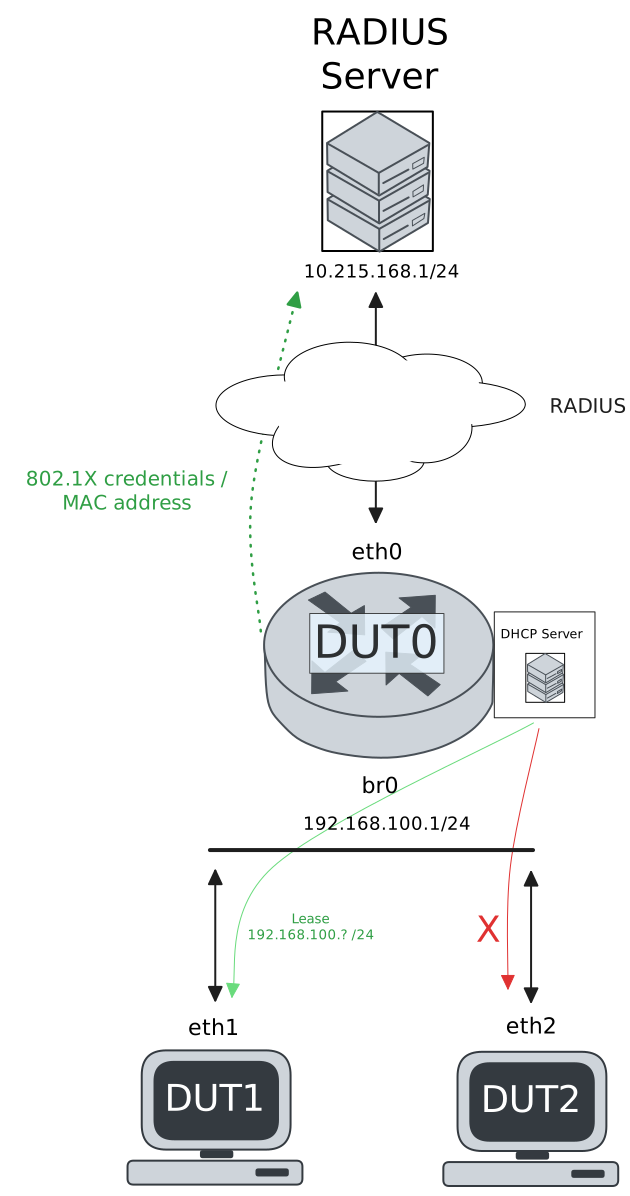
This scenario shows how to configure 802.1X authentication in a device with a DHCP-Server. Two DHCP-Clients are connected: DUT1 and DUT2. DUT1 is successfully authenticated, but DUT2 fails to authenticate and does not receive a DHCP lease.
Scenario
Step 1: Set the following configuration in DUT1 :
set interfaces ethernet eth1 address dhcp
set interfaces ethernet eth1 supplicant encrypted-password U2FsdGVkX1+pwk5GW5H6oJFkxmORuCSBQJ/DkOJRIQA=
set interfaces ethernet eth1 supplicant username testing
set system login user admin authentication encrypted-password '$6$GSjsCj8gHLv$/VcqU6FLi6CT2Oxn0MJQ2C2tqnRDrYKNF8HIYWJp68nvXvPdFccDsT04.WtigUONbKYrgKg8d6rEs8PjljMkH0'
Step 2: Set the following configuration in DUT2 :
set interfaces ethernet eth2 address dhcp
set interfaces ethernet eth2 supplicant encrypted-password U2FsdGVkX18eV2oJYSGcc63zeXbvEpnedtlpSgY1zJU=
set interfaces ethernet eth2 supplicant username wrong
set system login user admin authentication encrypted-password '$6$GSjsCj8gHLv$/VcqU6FLi6CT2Oxn0MJQ2C2tqnRDrYKNF8HIYWJp68nvXvPdFccDsT04.WtigUONbKYrgKg8d6rEs8PjljMkH0'
Step 3: Set the following configuration in DUT0 :
set interfaces bridge br0 address 192.168.100.1/24
set interfaces ethernet eth0 address 10.215.168.64/24
set interfaces ethernet eth1 authenticator 802.1x max-retransmissions 2
set interfaces ethernet eth1 authenticator aaa authentication list1
set interfaces ethernet eth1 authenticator log-level info
set interfaces ethernet eth1 authenticator mode only-802.1x
set interfaces ethernet eth1 bridge-group bridge br0
set interfaces ethernet eth2 authenticator aaa authentication list1
set interfaces ethernet eth2 authenticator log-level info
set interfaces ethernet eth2 authenticator mode only-802.1x
set interfaces ethernet eth2 bridge-group bridge br0
set service dhcp-server shared-network LAN subnet 192.168.100.0/24 start 192.168.100.2 stop 192.168.100.20
set system aaa group radius radgroup1 server serv1
set system aaa list list1 method 1 group radius radgroup1
set system aaa server radius serv1 address 10.215.168.1
set system aaa server radius serv1 encrypted-key U2FsdGVkX1+4ZbRoDLvz6pB1IiPDWLy8juuF12esu+JApLjXmZmRdo52Xi9SzqdF7zhJECjjWmu9LQr94Fy7dw==
set system login user admin authentication encrypted-password '$6$GSjsCj8gHLv$/VcqU6FLi6CT2Oxn0MJQ2C2tqnRDrYKNF8HIYWJp68nvXvPdFccDsT04.WtigUONbKYrgKg8d6rEs8PjljMkH0'
Step 4: Ping the IP address 10.215.168.1 from DUT0:
admin@DUT0$ ping 10.215.168.1 count 1 size 56 timeout 1Show output
PING 10.215.168.1 (10.215.168.1) 56(84) bytes of data.
64 bytes from 10.215.168.1: icmp_seq=1 ttl=64 time=0.187 ms

--- 10.215.168.1 ping statistics ---
1 packets transmitted, 1 received, 0% packet loss, time 0ms
rtt min/avg/max/mdev = 0.187/0.187/0.187/0.000 ms
Step 5: Run the command interfaces ethernet eth1 authenticator show status on DUT0 and check whether the output contains the following tokens:
Current status: AuthorizedShow output
Current status: Authorized (802.1X)
Step 6: Run the command interfaces ethernet show on DUT1 and check whether the output contains the following tokens:
192.168.100Show output
-----------------------------------------------------------------
Name           IP Address           Admin  Oper  Vrf  Description
-----------------------------------------------------------------
eth0                                down   down
eth1  192.168.100.2/24              up     up
      fe80::dcad:beff:feef:6c11/64
eth2                                down   down
eth3                                down   down
Step 7: Ping the IP address 192.168.100.1 from DUT1:
admin@DUT1$ ping 192.168.100.1 count 1 size 56 timeout 1Show output
PING 192.168.100.1 (192.168.100.1) 56(84) bytes of data.
64 bytes from 192.168.100.1: icmp_seq=1 ttl=64 time=0.339 ms

--- 192.168.100.1 ping statistics ---
1 packets transmitted, 1 received, 0% packet loss, time 0ms
rtt min/avg/max/mdev = 0.339/0.339/0.339/0.000 ms
Step 8: Run the command interfaces ethernet eth2 authenticator show status on DUT0 and check whether the output contains the following tokens:
Current status: UnauthorizedShow output
Current status: Unauthorized
Step 9: Run the command interfaces ethernet show on DUT2 and check whether the output does not contain the following tokens:
192.168.100Show output
-----------------------------------------------------------------
Name           IP Address           Admin  Oper  Vrf  Description
-----------------------------------------------------------------
eth0                                down   down
eth1                                down   down
eth2  fe80::dcad:beff:feef:6c22/64  up     up
eth3                                down   down
Step 10: Expect a failure in the following command:
Ping the IP address 192.168.100.1 from DUT2:
admin@DUT2$ ping 192.168.100.1 count 1 size 56 timeout 1Show output
ping: connect: Network is unreachable
Test MAB Authentication With Bridge And Multiple DHCP Clients
Description
This scenario shows how to configure MAB authentication in a device with a DHCP-Server. Two DHCP-Clients are connected: DUT1 and DUT2. DUT1 is successfully authenticated, but DUT2 fails to authenticate and does not receive a DHCP lease.
Scenario
Step 1: Set the following configuration in DUT1 :
set interfaces ethernet eth1 address dhcp
set system login user admin authentication encrypted-password '$6$GSjsCj8gHLv$/VcqU6FLi6CT2Oxn0MJQ2C2tqnRDrYKNF8HIYWJp68nvXvPdFccDsT04.WtigUONbKYrgKg8d6rEs8PjljMkH0'
Step 2: Set the following configuration in DUT2 :
set interfaces ethernet eth2 address dhcp
set system login user admin authentication encrypted-password '$6$GSjsCj8gHLv$/VcqU6FLi6CT2Oxn0MJQ2C2tqnRDrYKNF8HIYWJp68nvXvPdFccDsT04.WtigUONbKYrgKg8d6rEs8PjljMkH0'
Step 3: Set the following configuration in DUT0 :
set interfaces bridge br0 address 192.168.100.1/24
set interfaces ethernet eth0 address 10.215.168.64/24
set interfaces ethernet eth1 authenticator aaa authentication list1
set interfaces ethernet eth1 authenticator log-level info
set interfaces ethernet eth1 authenticator mode only-MAB
set interfaces ethernet eth1 bridge-group bridge br0
set interfaces ethernet eth2 authenticator aaa authentication list1
set interfaces ethernet eth2 authenticator log-level info
set interfaces ethernet eth2 authenticator mode only-MAB
set interfaces ethernet eth2 bridge-group bridge br0
set service dhcp-server shared-network LAN subnet 192.168.100.0/24 start 192.168.100.2 stop 192.168.100.20
set system aaa group radius radgroup1 server serv1
set system aaa list list1 method 1 group radius radgroup1
set system aaa server radius serv1 address 10.215.168.1
set system aaa server radius serv1 encrypted-key U2FsdGVkX18wlz7pgdJk6bg73LCQSONriuCV+5jMChj7CyO7PvZdFu3yP2QtsmYwHs44oDH38LIj1qVxQ6QWwg==
set system login user admin authentication encrypted-password '$6$GSjsCj8gHLv$/VcqU6FLi6CT2Oxn0MJQ2C2tqnRDrYKNF8HIYWJp68nvXvPdFccDsT04.WtigUONbKYrgKg8d6rEs8PjljMkH0'
Step 4: Ping the IP address 10.215.168.1 from DUT0:
admin@DUT0$ ping 10.215.168.1 count 1 size 56 timeout 1Show output
PING 10.215.168.1 (10.215.168.1) 56(84) bytes of data.
64 bytes from 10.215.168.1: icmp_seq=1 ttl=64 time=0.171 ms

--- 10.215.168.1 ping statistics ---
1 packets transmitted, 1 received, 0% packet loss, time 0ms
rtt min/avg/max/mdev = 0.171/0.171/0.171/0.000 ms
Step 5: Run the command interfaces ethernet eth1 authenticator show status on DUT0 and check whether the output contains the following tokens:
Current status: AuthorizedShow output
Current status: Authorized (MAB)
Step 6: Run the command interfaces ethernet show on DUT1 and check whether the output contains the following tokens:
192.168.100Show output
-----------------------------------------------------------------
Name           IP Address           Admin  Oper  Vrf  Description
-----------------------------------------------------------------
eth0                                down   down
eth1  192.168.100.2/24              up     up
      fe80::dcad:beff:feef:6c11/64
eth2                                down   down
eth3                                down   down
Step 7: Ping the IP address 192.168.100.1 from DUT1:
admin@DUT1$ ping 192.168.100.1 count 1 size 56 timeout 1Show output
PING 192.168.100.1 (192.168.100.1) 56(84) bytes of data.
64 bytes from 192.168.100.1: icmp_seq=1 ttl=64 time=0.509 ms

--- 192.168.100.1 ping statistics ---
1 packets transmitted, 1 received, 0% packet loss, time 0ms
rtt min/avg/max/mdev = 0.509/0.509/0.509/0.000 ms
Step 8: Run the command interfaces ethernet eth2 authenticator show status on DUT0 and check whether the output contains the following tokens:
Current status: UnauthorizedShow output
Current status: Unauthorized
Step 9: Run the command interfaces ethernet show on DUT2 and check whether the output does not contain the following tokens:
192.168.100Show output
-----------------------------------------------------------------
Name           IP Address           Admin  Oper  Vrf  Description
-----------------------------------------------------------------
eth0                                down   down
eth1                                down   down
eth2  fe80::dcad:beff:feef:6c22/64  up     up
eth3                                down   down
Step 10: Expect a failure in the following command:
Ping the IP address 192.168.100.1 from DUT2:
admin@DUT2$ ping 192.168.100.1 count 1 size 56 timeout 1Show output
ping: connect: Network is unreachable