Coa
This scenario shows how to enable CoA (Change of Authorization) in a device with 802.1x/MAB authentication.
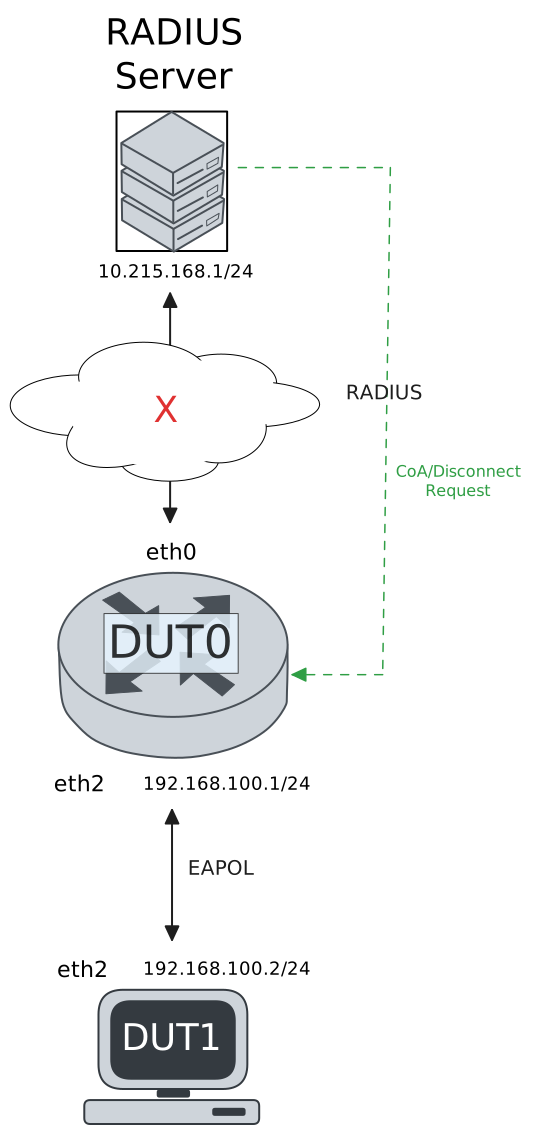
Test CoA Disconnect 802.1x Peer
Description
In this scenario, three parties are actively involved: an authenticator (DUT0), a supplicant (DUT1), and an authentication server (DUT2). Once authentication is successfully performed, DUT2 sends a CoA/Disconnect message to terminate the active session.
Scenario
Step 1: Set the following configuration in DUT0 :
set interfaces ethernet eth0 address 10.215.168.64/24
set interfaces ethernet eth2 address 192.168.100.1/24
set interfaces ethernet eth2 authenticator 802.1x max-retransmissions 2
set interfaces ethernet eth2 authenticator aaa authentication list1
set interfaces ethernet eth2 authenticator coa client 10.215.168.1
set interfaces ethernet eth2 authenticator coa encrypted-secret U2FsdGVkX1/XFHnKsXRB3wCzCUYyYu11AN8EuW6Ss6U=
set interfaces ethernet eth2 authenticator log-level debug
set interfaces ethernet eth2 authenticator mode only-802.1x
set interfaces ethernet eth2 authenticator quiet-period 60
set interfaces ethernet eth2 authenticator reauth-period 0
set system aaa group radius radgroup1 server serv1
set system aaa list list1 method 1 group radius radgroup1
set system aaa server radius serv1 address 10.215.168.1
set system aaa server radius serv1 encrypted-key U2FsdGVkX1/LoYpfHzj3/5O88B//8QiiyhrPR6Vjn2XRrv1VAdF5SU5ovRraNepxPzVx/kpG8efdmrCg70g7vw==
set system login user admin authentication encrypted-password '$6$GSjsCj8gHLv$/VcqU6FLi6CT2Oxn0MJQ2C2tqnRDrYKNF8HIYWJp68nvXvPdFccDsT04.WtigUONbKYrgKg8d6rEs8PjljMkH0'
Step 2: Ping IP address 10.215.168.1 from DUT0:
admin@DUT0$ ping 10.215.168.1 count 1 size 56 timeout 1Show output
PING 10.215.168.1 (10.215.168.1) 56(84) bytes of data.
64 bytes from 10.215.168.1: icmp_seq=1 ttl=64 time=0.575 ms

--- 10.215.168.1 ping statistics ---
1 packets transmitted, 1 received, 0% packet loss, time 0ms
rtt min/avg/max/mdev = 0.575/0.575/0.575/0.000 ms
Step 3: Set the following configuration in DUT1 :
set interfaces ethernet eth2 address 192.168.100.2/24
set interfaces ethernet eth2 supplicant encrypted-password U2FsdGVkX1+wcf4dIQSqK7lKkxpCw4DMaNWKOmzgU5E=
set interfaces ethernet eth2 supplicant username testing
set system login user admin authentication encrypted-password '$6$GSjsCj8gHLv$/VcqU6FLi6CT2Oxn0MJQ2C2tqnRDrYKNF8HIYWJp68nvXvPdFccDsT04.WtigUONbKYrgKg8d6rEs8PjljMkH0'
Step 4: Run command interfaces ethernet eth2 supplicant show status at DUT1 and check if output contains the following tokens:
AuthorizedShow output
---------------------------------------------------
        Field                      Value
---------------------------------------------------
EAP State                                   SUCCESS
EAP TLS Cipher          ECDHE-RSA-AES256-GCM-SHA384
EAP TLS Version                             TLSv1.2
PAE State                             AUTHENTICATED
Supplicant Port Status                   Authorized
WPA State                                 COMPLETED
Step 5: Run command interfaces ethernet eth2 supplicant show stats at DUT1 and check if output matches the following regular expressions:
Port Status\s+AuthorizedShow output
-------------------------------
       Field           Value
-------------------------------
EAPoL Frames (Rx)            11
EAPoL Frames (Tx)            11
Invalid Frames (Rx)           0
Logoff Frames (Tx)            0
Port Status          Authorized
Req Frames (Rx)               9
Req ID Frames (Rx)            1
Resp Frames (Tx)             10
Start Frames (Tx)             1
Step 6: Run command interfaces ethernet eth2 authenticator show stats at DUT0 and check if output matches the following regular expressions:
Authentication Successes\s+1
Authentication Mode\s+802\.1X
Show output
---------------------------------------------
         Field                   Value
---------------------------------------------
Access Challenges                           9
Authentication Backend                 RADIUS
Authentication Failures                     0
Authentication Mode                    802.1X
Authentication Status     Authorized (802.1X)
Authentication Successes                    1
EAPoL frames (Rx)                          11
EAPoL frames (Tx)                          11
Quiet Period                               60
Reauthenticate                          FALSE
Reauthenticate Period                       0
Session Time                                0
Session User MAC            de:ad:be:ef:6c:12
Session User Name                     testing
Step 7: Ping IP address 192.168.100.1 from DUT1:
admin@DUT1$ ping 192.168.100.1 count 1 size 56 timeout 1Show output
PING 192.168.100.1 (192.168.100.1) 56(84) bytes of data.
64 bytes from 192.168.100.1: icmp_seq=1 ttl=64 time=0.365 ms

--- 192.168.100.1 ping statistics ---
1 packets transmitted, 1 received, 0% packet loss, time 0ms
rtt min/avg/max/mdev = 0.365/0.365/0.365/0.000 ms
Note
Send a CoA/Disconnect request from the RADIUS server
On Linux, the FreeRADIUS package includes the
radtest utility, which can be used to send these messages:
Show output
$ cat /osdx-tests/utils/dot1x/auth_dot1x.req
User-Name = "testing"
$ radclient -s -t 1 -r 1 10.215.168.64:3799 disconnect coa_secret -f /osdx-tests/utils/dot1x/auth_dot1x.req
Sent Disconnect-Request Id 148 from 0.0.0.0:45973 to 10.215.168.64:3799 length 29
Received Disconnect-ACK Id 148 from 10.215.168.64:3799 to 10.215.168.1:45973 length 44
Packet summary:
      Accepted      : 1
      Rejected      : 0
      Lost          : 0
      Passed filter : 1
      Failed filter : 0
Warning
Since CoA/Disconnect was successful, DUT1 is no longer able to reach DUT0.
Step 8: Expect a failure in the following command:
Ping IP address 192.168.100.1 from DUT1:
admin@DUT1$ ping 192.168.100.1 count 1 size 56 timeout 1Show output
PING 192.168.100.1 (192.168.100.1) 56(84) bytes of data.

--- 192.168.100.1 ping statistics ---
1 packets transmitted, 0 received, 100% packet loss, time 0ms
Test CoA Disconnect MAB Peer
Description
Similar to the 802.1x peer scenario, but with MAB authentication.
Scenario
Step 1: Set the following configuration in DUT0 :
set interfaces ethernet eth0 address 10.215.168.64/24
set interfaces ethernet eth2 address 192.168.100.1/24
set interfaces ethernet eth2 authenticator aaa authentication list1
set interfaces ethernet eth2 authenticator coa client 10.215.168.1
set interfaces ethernet eth2 authenticator coa encrypted-secret U2FsdGVkX19tmgTMgcQYiZguD5s/sne33pnizuzcjkI=
set interfaces ethernet eth2 authenticator log-level debug
set interfaces ethernet eth2 authenticator mode only-MAB
set interfaces ethernet eth2 authenticator quiet-period 60
set interfaces ethernet eth2 authenticator reauth-period 0
set system aaa group radius radgroup1 server serv1
set system aaa list list1 method 1 group radius radgroup1
set system aaa server radius serv1 address 10.215.168.1
set system aaa server radius serv1 encrypted-key U2FsdGVkX19DV6xfPHcJ9/+F9Y7w5zL0NnUu/d1vccZ4OY3Jban9ZHQObc2annxuVvUiOxY6uKb25sI7iq9oSA==
set system login user admin authentication encrypted-password '$6$GSjsCj8gHLv$/VcqU6FLi6CT2Oxn0MJQ2C2tqnRDrYKNF8HIYWJp68nvXvPdFccDsT04.WtigUONbKYrgKg8d6rEs8PjljMkH0'
Step 2: Ping IP address 10.215.168.1 from DUT0:
admin@DUT0$ ping 10.215.168.1 count 1 size 56 timeout 1Show output
PING 10.215.168.1 (10.215.168.1) 56(84) bytes of data.
64 bytes from 10.215.168.1: icmp_seq=1 ttl=64 time=0.292 ms

--- 10.215.168.1 ping statistics ---
1 packets transmitted, 1 received, 0% packet loss, time 0ms
rtt min/avg/max/mdev = 0.292/0.292/0.292/0.000 ms
Step 3: Set the following configuration in DUT1 :
set interfaces ethernet eth2 address 192.168.100.2/24
set system login user admin authentication encrypted-password '$6$GSjsCj8gHLv$/VcqU6FLi6CT2Oxn0MJQ2C2tqnRDrYKNF8HIYWJp68nvXvPdFccDsT04.WtigUONbKYrgKg8d6rEs8PjljMkH0'
Step 4: Ping IP address 192.168.100.1 from DUT1:
admin@DUT1$ ping 192.168.100.1 count 1 size 56 timeout 1Show output
PING 192.168.100.1 (192.168.100.1) 56(84) bytes of data.
64 bytes from 192.168.100.1: icmp_seq=1 ttl=64 time=0.677 ms

--- 192.168.100.1 ping statistics ---
1 packets transmitted, 1 received, 0% packet loss, time 0ms
rtt min/avg/max/mdev = 0.677/0.677/0.677/0.000 ms
Step 5: Run command interfaces ethernet eth2 authenticator show stats at DUT0 and check if output matches the following regular expressions:
Authentication Successes\s+1
Authentication Mode\s+MAB
Show output
-------------------------------------------
         Field                  Value
-------------------------------------------
Access Challenges                         0
Authentication Backend               RADIUS
Authentication Failures                   0
Authentication Mode                     MAB
Authentication Status      Authorized (MAB)
Authentication Successes                  1
EAPoL frames (Rx)                         0
EAPoL frames (Tx)                         0
Quiet Period                             60
Reauthenticate                        FALSE
Reauthenticate Period                     0
Session Time                              0
Session User MAC          de:ad:be:ef:6c:12
Session User Name                       N/A
Step 6: Ping IP address 192.168.100.1 from DUT1:
admin@DUT1$ ping 192.168.100.1 count 1 size 56 timeout 1Show output
PING 192.168.100.1 (192.168.100.1) 56(84) bytes of data.
64 bytes from 192.168.100.1: icmp_seq=1 ttl=64 time=0.651 ms

--- 192.168.100.1 ping statistics ---
1 packets transmitted, 1 received, 0% packet loss, time 0ms
rtt min/avg/max/mdev = 0.651/0.651/0.651/0.000 ms
Note
Send a CoA/Disconnect request from the RADIUS server
On Linux, the FreeRADIUS package includes the
radtest utility, which can be used to send these messages:
Show output
$ cat /osdx-tests/utils/dot1x/auth_mab.req
User-Name = "de:ad:be:ef:6c:12"
$ radclient -s -t 1 -r 1 10.215.168.64:3799 disconnect coa_secret -f /osdx-tests/utils/dot1x/auth_mab.req
Sent Disconnect-Request Id 45 from 0.0.0.0:47973 to 10.215.168.64:3799 length 39
Received Disconnect-ACK Id 45 from 10.215.168.64:3799 to 10.215.168.1:47973 length 44
Packet summary:
      Accepted      : 1
      Rejected      : 0
      Lost          : 0
      Passed filter : 1
      Failed filter : 0
Warning
Since CoA/Disconnect was successful, DUT1 is no longer able to reach DUT0.
Step 7: Expect a failure in the following command:
Ping IP address 192.168.100.1 from DUT1:
admin@DUT1$ ping 192.168.100.1 count 1 size 56 timeout 1Show output
PING 192.168.100.1 (192.168.100.1) 56(84) bytes of data.

--- 192.168.100.1 ping statistics ---
1 packets transmitted, 0 received, 100% packet loss, time 0ms
Test CoA Disconnect Wrong Username
Description
In this scenario, DUT2 sends a CoA request to DUT0 using the wrong username. DUT0 rejects the request.
Scenario
Step 1: Set the following configuration in DUT0 :
set interfaces ethernet eth0 address 10.215.168.64/24 set interfaces ethernet eth2 address 192.168.100.1/24 set interfaces ethernet eth2 authenticator 802.1x max-retransmissions 2 set interfaces ethernet eth2 authenticator aaa authentication list1 set interfaces ethernet eth2 authenticator coa client 10.215.168.1 set interfaces ethernet eth2 authenticator coa encrypted-secret U2FsdGVkX1/kvsR7CNCjN7y2VdLP6x+o6apRMomh/Q0= set interfaces ethernet eth2 authenticator log-level debug set interfaces ethernet eth2 authenticator mode only-802.1x set interfaces ethernet eth2 authenticator quiet-period 60 set interfaces ethernet eth2 authenticator reauth-period 0 set system aaa group radius radgroup1 server serv1 set system aaa list list1 method 1 group radius radgroup1 set system aaa server radius serv1 address 10.215.168.1 set system aaa server radius serv1 encrypted-key U2FsdGVkX1/AumOFMvBp6L7S0+2aFN03S2/BUvy85ZWtYevHbbLEgTeqv51/RAHPdJLeTGmkq1Hb7xb8f/Tr6A== set system login user admin authentication encrypted-password '$6$GSjsCj8gHLv$/VcqU6FLi6CT2Oxn0MJQ2C2tqnRDrYKNF8HIYWJp68nvXvPdFccDsT04.WtigUONbKYrgKg8d6rEs8PjljMkH0'
Step 2: Ping IP address 10.215.168.1 from DUT0:
admin@DUT0$ ping 10.215.168.1 count 1 size 56 timeout 1Show output
PING 10.215.168.1 (10.215.168.1) 56(84) bytes of data. 64 bytes from 10.215.168.1: icmp_seq=1 ttl=64 time=0.272 ms --- 10.215.168.1 ping statistics --- 1 packets transmitted, 1 received, 0% packet loss, time 0ms rtt min/avg/max/mdev = 0.272/0.272/0.272/0.000 ms
Step 3: Set the following configuration in DUT1 :
set interfaces ethernet eth2 address 192.168.100.2/24 set interfaces ethernet eth2 supplicant encrypted-password U2FsdGVkX18MPsk1tLOIsZH8f5ATOP3LmLkIBrwxLxA= set interfaces ethernet eth2 supplicant username testing set system login user admin authentication encrypted-password '$6$GSjsCj8gHLv$/VcqU6FLi6CT2Oxn0MJQ2C2tqnRDrYKNF8HIYWJp68nvXvPdFccDsT04.WtigUONbKYrgKg8d6rEs8PjljMkH0'
Step 4: Run command interfaces ethernet eth2 supplicant show status at DUT1 and check if output contains the following tokens:
AuthorizedShow output
---------------------------------------------------
        Field                      Value
---------------------------------------------------
EAP State                                   SUCCESS
EAP TLS Cipher          ECDHE-RSA-AES256-GCM-SHA384
EAP TLS Version                             TLSv1.2
PAE State                             AUTHENTICATED
Supplicant Port Status                   Authorized
WPA State                                 COMPLETED
Step 5: Run command interfaces ethernet eth2 supplicant show stats at DUT1 and check if output matches the following regular expressions:
Port Status\s+AuthorizedShow output
-------------------------------
       Field           Value
-------------------------------
EAPoL Frames (Rx)            11
EAPoL Frames (Tx)            11
Invalid Frames (Rx)           0
Logoff Frames (Tx)            0
Port Status          Authorized
Req Frames (Rx)               9
Req ID Frames (Rx)            1
Resp Frames (Tx)             10
Start Frames (Tx)             1
Step 6: Run command interfaces ethernet eth2 authenticator show stats at DUT0 and check if output matches the following regular expressions:
Authentication Successes\s+1
Authentication Mode\s+802\.1X
Show output
---------------------------------------------
         Field                   Value
---------------------------------------------
Access Challenges                           9
Authentication Backend                 RADIUS
Authentication Failures                     0
Authentication Mode                    802.1X
Authentication Status     Authorized (802.1X)
Authentication Successes                    1
EAPoL frames (Rx)                          11
EAPoL frames (Tx)                          11
Quiet Period                               60
Reauthenticate                          FALSE
Reauthenticate Period                       0
Session Time                                0
Session User MAC            de:ad:be:ef:6c:12
Session User Name                     testing
Step 7: Ping IP address 192.168.100.1 from DUT1:
admin@DUT1$ ping 192.168.100.1 count 1 size 56 timeout 1Show output
PING 192.168.100.1 (192.168.100.1) 56(84) bytes of data. 64 bytes from 192.168.100.1: icmp_seq=1 ttl=64 time=0.432 ms --- 192.168.100.1 ping statistics --- 1 packets transmitted, 1 received, 0% packet loss, time 0ms rtt min/avg/max/mdev = 0.432/0.432/0.432/0.000 ms
Note
Send a CoA/Disconnect request from the RADIUS server
On Linux, the FreeRADIUS package includes the
radtest utility, which can be used to send these messages:
Show output
$ cat /osdx-tests/utils/dot1x/wrong_auth.req User-Name = "wrong" $ radclient -s -t 1 -r 1 10.215.168.64:3799 disconnect coa_secret -f /osdx-tests/utils/dot1x/wrong_auth.req Sent Disconnect-Request Id 21 from 0.0.0.0:52080 to 10.215.168.64:3799 length 27 Received Disconnect-NAK Id 21 from 10.215.168.64:3799 to 10.215.168.1:52080 length 50 Packet summary: Accepted : 0 Rejected : 1 Lost : 0 Passed filter : 0 Failed filter : 1
Warning
Since CoA/Disconnect was unsuccessful, DUT1 is still able to reach DUT0.
Step 8: Ping IP address 192.168.100.1 from DUT1:
admin@DUT1$ ping 192.168.100.1 count 1 size 56 timeout 1Show output
PING 192.168.100.1 (192.168.100.1) 56(84) bytes of data. 64 bytes from 192.168.100.1: icmp_seq=1 ttl=64 time=0.247 ms --- 192.168.100.1 ping statistics --- 1 packets transmitted, 1 received, 0% packet loss, time 0ms rtt min/avg/max/mdev = 0.247/0.247/0.247/0.000 ms
Test CoA Disconnect Wrong Secret
Description
In this scenario, DUT2 uses a wrong secret to send a CoA request to DUT0. The request is, therefore, rejected.
Scenario
Step 1: Set the following configuration in DUT0 :
set interfaces ethernet eth0 address 10.215.168.64/24 set interfaces ethernet eth2 address 192.168.100.1/24 set interfaces ethernet eth2 authenticator 802.1x max-retransmissions 2 set interfaces ethernet eth2 authenticator aaa authentication list1 set interfaces ethernet eth2 authenticator coa client 10.215.168.1 set interfaces ethernet eth2 authenticator coa encrypted-secret U2FsdGVkX19CyUePnVKRdJn/y6MXejpfzLpMGDmz9zc= set interfaces ethernet eth2 authenticator log-level debug set interfaces ethernet eth2 authenticator mode only-802.1x set interfaces ethernet eth2 authenticator quiet-period 60 set interfaces ethernet eth2 authenticator reauth-period 0 set system aaa group radius radgroup1 server serv1 set system aaa list list1 method 1 group radius radgroup1 set system aaa server radius serv1 address 10.215.168.1 set system aaa server radius serv1 encrypted-key U2FsdGVkX186n7Q0OXQS3jWHNjVsgFicVh43xQ6mjyHoLf5YSTFKwBdzTBdHZsQKRJjly8IZ89GB9Gc8E3kCWQ== set system login user admin authentication encrypted-password '$6$GSjsCj8gHLv$/VcqU6FLi6CT2Oxn0MJQ2C2tqnRDrYKNF8HIYWJp68nvXvPdFccDsT04.WtigUONbKYrgKg8d6rEs8PjljMkH0'
Step 2: Ping IP address 10.215.168.1 from DUT0:
admin@DUT0$ ping 10.215.168.1 count 1 size 56 timeout 1Show output
PING 10.215.168.1 (10.215.168.1) 56(84) bytes of data. 64 bytes from 10.215.168.1: icmp_seq=1 ttl=64 time=0.298 ms --- 10.215.168.1 ping statistics --- 1 packets transmitted, 1 received, 0% packet loss, time 0ms rtt min/avg/max/mdev = 0.298/0.298/0.298/0.000 ms
Step 3: Set the following configuration in DUT1 :
set interfaces ethernet eth2 address 192.168.100.2/24 set interfaces ethernet eth2 supplicant encrypted-password U2FsdGVkX1+TLPYg7rgAcFtRX0OzzJnEAZj5RrfRkG8= set interfaces ethernet eth2 supplicant username testing set system login user admin authentication encrypted-password '$6$GSjsCj8gHLv$/VcqU6FLi6CT2Oxn0MJQ2C2tqnRDrYKNF8HIYWJp68nvXvPdFccDsT04.WtigUONbKYrgKg8d6rEs8PjljMkH0'
Step 4: Run command interfaces ethernet eth2 supplicant show status at DUT1 and check if output contains the following tokens:
AuthorizedShow output
---------------------------------------------------
        Field                      Value
---------------------------------------------------
EAP State                                   SUCCESS
EAP TLS Cipher          ECDHE-RSA-AES256-GCM-SHA384
EAP TLS Version                             TLSv1.2
PAE State                             AUTHENTICATED
Supplicant Port Status                   Authorized
WPA State                                 COMPLETED
Step 5: Run command interfaces ethernet eth2 supplicant show stats at DUT1 and check if output matches the following regular expressions:
Port Status\s+AuthorizedShow output
-------------------------------
       Field           Value
-------------------------------
EAPoL Frames (Rx)            11
EAPoL Frames (Tx)            11
Invalid Frames (Rx)           0
Logoff Frames (Tx)            0
Port Status          Authorized
Req Frames (Rx)               9
Req ID Frames (Rx)            1
Resp Frames (Tx)             10
Start Frames (Tx)             1
Step 6: Run command interfaces ethernet eth2 authenticator show stats at DUT0 and check if output matches the following regular expressions:
Authentication Successes\s+1
Authentication Mode\s+802\.1X
Show output
---------------------------------------------
         Field                   Value
---------------------------------------------
Access Challenges                           9
Authentication Backend                 RADIUS
Authentication Failures                     0
Authentication Mode                    802.1X
Authentication Status     Authorized (802.1X)
Authentication Successes                    1
EAPoL frames (Rx)                          11
EAPoL frames (Tx)                          11
Quiet Period                               60
Reauthenticate                          FALSE
Reauthenticate Period                       0
Session Time                                0
Session User MAC            de:ad:be:ef:6c:12
Session User Name                     testing
Step 7: Ping IP address 192.168.100.1 from DUT1:
admin@DUT1$ ping 192.168.100.1 count 1 size 56 timeout 1Show output
PING 192.168.100.1 (192.168.100.1) 56(84) bytes of data.
64 bytes from 192.168.100.1: icmp_seq=1 ttl=64 time=0.342 ms

--- 192.168.100.1 ping statistics ---
1 packets transmitted, 1 received, 0% packet loss, time 0ms
rtt min/avg/max/mdev = 0.342/0.342/0.342/0.000 ms
Note
Send a CoA/Disconnect request from the RADIUS server
On Linux, the FreeRADIUS package includes the
radtest utility, which can be used to send these messages:
Show output
$ cat /osdx-tests/utils/dot1x/auth_dot1x.req
User-Name = "testing"
$ radclient -s -t 1 -r 1 10.215.168.64:3799 disconnect 123456 -f /osdx-tests/utils/dot1x/auth_dot1x.req
Sent Disconnect-Request Id 29 from 0.0.0.0:47018 to 10.215.168.64:3799 length 29
Packet summary:
      Accepted      : 0
      Rejected      : 0
      Lost          : 1
      Passed filter : 0
      Failed filter : 0
Warning
Since CoA/Disconnect was unsuccessful, DUT1 is still able to reach DUT0.
Step 8: Ping IP address 192.168.100.1 from DUT1:
admin@DUT1$ ping 192.168.100.1 count 1 size 56 timeout 1Show output
PING 192.168.100.1 (192.168.100.1) 56(84) bytes of data.
64 bytes from 192.168.100.1: icmp_seq=1 ttl=64 time=0.537 ms

--- 192.168.100.1 ping statistics ---
1 packets transmitted, 1 received, 0% packet loss, time 0ms
rtt min/avg/max/mdev = 0.537/0.537/0.537/0.000 ms